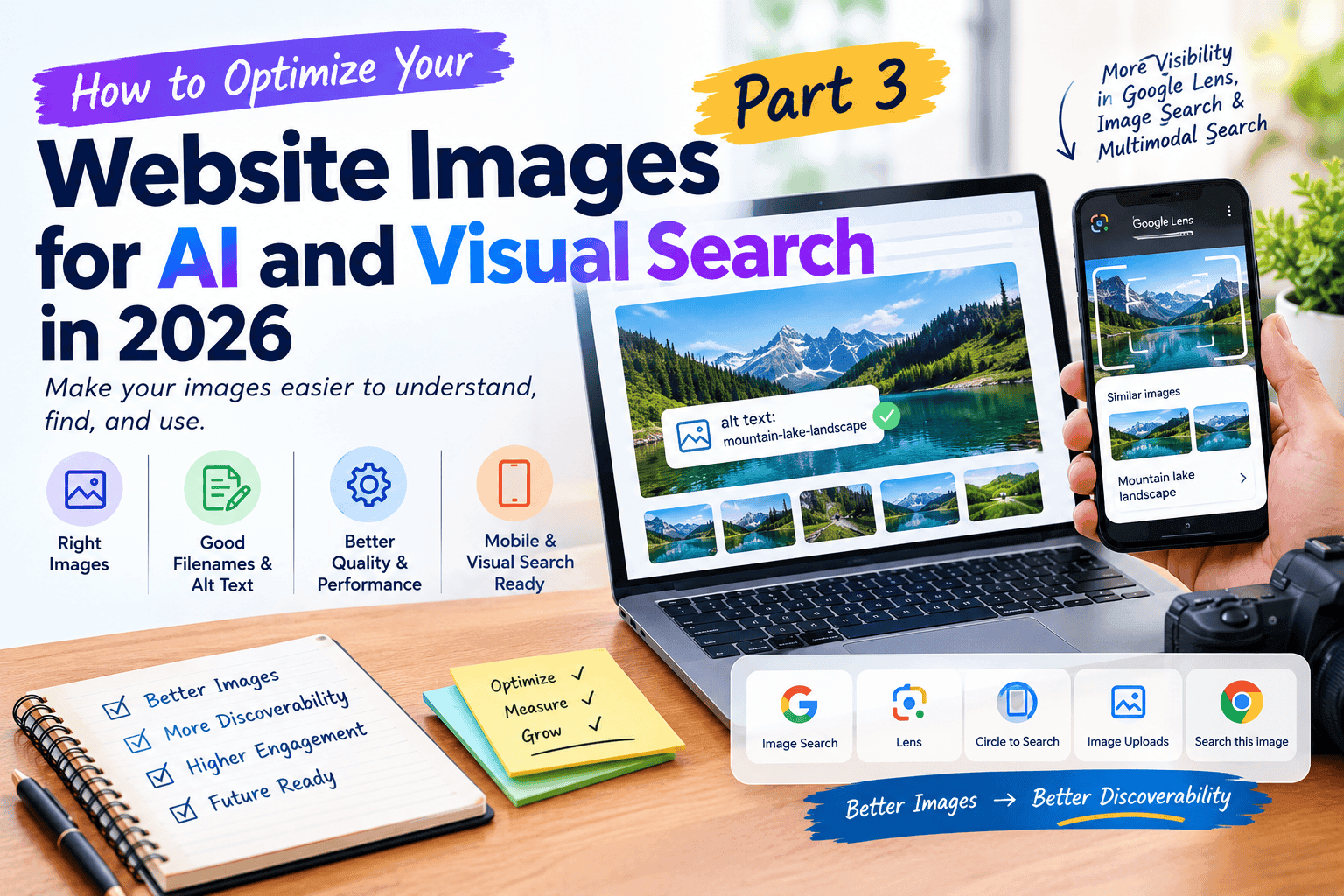
How to Optimize Your Website Images for AI and Visual Search in 2026
A few years ago, website images were mostly treated as decoration.
You would choose a nice stock photo, upload it to WordPress, add it to the article, and move on.
That approach is no longer enough.
Search is becoming much more visual. People can now search with a camera, upload an image, use Google Lens, or even search an image directly from their browser. Google has also introduced new Search Console reporting for multimodal searches, including Lens, Circle to Search on Android, image uploads, and Chrome’s “Search this image” feature.
So if your website depends on images—whether you’re running a blog, online store, portfolio, local business website, or service website—your images deserve more attention.
The good news?
You don’t need to become a photographer or redesign your entire website.
You simply need to make your images useful, understandable, accessible, and easy for both people and search systems to process.
Let’s start with the basics.
1. What Is Visual and Multimodal Search?
Imagine you’re walking through a market and see a pair of shoes you really like.
You don’t know the brand. You don’t know the model. You don’t even know what words to type into Google.
So instead of typing a query, you take a picture.
That’s visual search.
The image itself becomes part of the search query.
Multimodal search goes a step further. Instead of relying only on text or only on an image, the search system can work with different types of information together.
For example, you might take a picture of a laptop and ask:
“What model is this and how much does it cost?”
The image provides the visual information, while your question provides the context.
This changes the way websites can be discovered.
Google’s latest Search Console update is a good example of where search is heading. As of September 24, 2026, Google began rolling out reporting for web multimodal searches, covering experiences such as Google Lens, Circle to Search, image uploads to Google Search, and Chrome’s “Search this image.”
That doesn’t mean every website will suddenly receive huge amounts of traffic from images.
It simply means visual discovery is becoming measurable and increasingly important.
A simple example
Suppose you publish an article about:
“How to Choose the Right Laptop for Graphic Design.”
You could use a generic stock photo of someone sitting in front of a laptop.
Or you could create a useful comparison image showing:
RAM requirements
recommended processor
display resolution
storage
GPU requirements
The second image actually helps the reader understand the topic.
It also gives search systems much more useful context about what the image represents.
That’s the mindset you want:
Don’t add images just because an article “needs an image.” Add images because they help explain something.
Google’s own image SEO documentation recommends making images relevant to the page and placing them near related text.
2. Why Images Matter More in Modern Search
Think about how you search for something today.
Sometimes you type a question.
Sometimes you watch a video.
Sometimes you look at images.
And sometimes you see something interesting in the real world and point your phone at it.
Search is no longer just a box where you type ten words.
It’s becoming a combination of text, images, context, and intent.
That’s why images can play a bigger role in how people discover your website.
Google explains that images can appear in several Search experiences, including Google Images, image results associated with text results, and Discover.
But here’s something many website owners misunderstand:
An image doesn’t automatically become valuable just because it exists.
Uploading 20 random stock photos won’t make your website more useful.
In fact, imagine two articles about WordPress website speed.
Website A uses:
person-working-on-laptop.jpg
Website B uses:
wordpress-page-speed-before-after-comparison.webp
And the second image actually shows a before-and-after speed comparison discussed in the article.
Which one gives the reader more information?
Obviously, the second.
The image is connected to the subject.
The surrounding text explains it.
The filename provides a useful clue.
And the image itself contains information.
That’s much more useful than simply putting a decorative laptop photo between two paragraphs.
Images can also improve the reading experience
Long blocks of text are tiring.
A well-designed diagram, screenshot, comparison table, original photograph, or simple illustration can give the reader a mental break while making the explanation easier to understand.
For example, in an article about how to track AI search visibility, a screenshot of a reporting dashboard could be much more useful than a generic AI-themed image.
The reader can see what you’re talking about, instead of simply reading about it.
That’s the real opportunity.
3. How AI Understands Images and Their Context
Here’s where things get interesting.
A search system doesn’t necessarily understand an image because you named the file perfectly.
It can use multiple signals.
Google says it uses the image’s alt text, surrounding page content, captions, image titles, and computer-vision systems to understand what an image represents.
So think of your image as part of a larger conversation.
For example, suppose you upload this image:
IMG_9283.jpg
The filename tells Google almost nothing.
Now imagine the same image is:
wordpress-dashboard-speed-report.webp
And the image appears underneath a paragraph explaining how to analyze WordPress performance.
You could also give it useful alt text such as:
WordPress performance report showing page speed results
Now the image has context from several directions.
The page says one thing.
The image shows something related.
The filename gives a small additional clue.
The alt text describes the image.
Together, these signals make the image easier to understand.
But there’s an important point here:
Don’t try to trick the system by stuffing keywords everywhere.
For example, this is a terrible alt text:
WordPress SEO AI search website SEO WordPress optimization AI SEO best WordPress website
It isn’t useful to a human being, and Google specifically advises against keyword stuffing in alt text.
Instead, describe what the image actually shows.
If the image shows a WordPress dashboard with a performance report, say that.
If it shows a red sports car, describe the car.
If it is a decorative background that adds no information, you may not need descriptive alt text at all.
The goal isn’t:
“How many keywords can I put into this image?”
The better question is:
“If someone couldn’t see this image, what would they need to know about it?”
That’s a much better way to write alt text.
4. Choose the Right Images for Your Content
Before worrying about filenames, formats, compression, or alt text, start with the most important question:
Is this actually the right image?
This sounds obvious, but it’s where many websites go wrong.
A business publishes an article about website security and adds a random photo of a person typing on a laptop.
Another article about SEO gets the same laptop photo.
Then another article about WordPress gets another version of the same image.
After a while, the website is full of attractive images that don’t really explain anything.
Your images should have a job.
Here are some useful image types:
Screenshots
Perfect for tutorials, software guides, and step-by-step instructions.
For example, if you’re explaining how to check whether a website appears in AI search results, a relevant screenshot can make the instructions much easier to follow. You can also connect readers to your detailed guide on checking whether your website appears in AI search results.
Original diagrams
Useful when you’re explaining a process or relationship.
For example:
Website → Content → Search System → User → Click
A simple diagram can communicate this faster than several paragraphs.
Before-and-after images
Excellent for web design, SEO audits, image optimization, speed improvements, and other visual changes.
Charts and data visualizations
Useful when numbers or comparisons are important.
Original photographs
Particularly valuable for businesses, local services, products, restaurants, travel websites, and portfolios.
Product images
Essential for e-commerce websites. Show the actual product rather than relying entirely on generic manufacturer images.
Don’t use an image just because you need one
Ask yourself three questions:
Does this image help the reader?
Is it relevant to the page?
Does it show something that is difficult to explain with words alone?
If the answer is yes, keep it.
If the answer is no, you may not need the image.
Google’s image SEO guidance similarly emphasizes relevance, image quality, surrounding content, and the image’s landing page rather than treating the image as an isolated file.
One practical example
Let’s say you’re writing:
“How to Improve WordPress Website Speed.”
Instead of adding three generic stock photos, you could use:
A screenshot of a PageSpeed report
A before/after image showing image file sizes
A diagram explaining how large images affect loading time
A screenshot showing WebP image settings
Now every image has a purpose.
And the article becomes easier to understand.
That’s exactly what we want from modern website content:
less decoration, more useful information.
What We’ve Learned So Far
Optimizing images for modern search isn’t about finding a magic “AI image SEO” trick.
It starts with something much simpler:
Create images that are genuinely useful to your visitors.
Then give those images enough context for search systems and assistive technologies to understand them.
Part 2: Make Your Images Easier to Understand, Find, and Use
In Part 1, we looked at why visual and multimodal search are becoming more important and why simply adding a nice-looking image isn’t enough.
Now let’s get practical.
If you have a WordPress website, blog, online store, or business website, there are several small things you can do to make your images more useful for visitors and easier for search systems to understand.
You don’t need to change everything at once.
Start with these four areas.
5. Write Better Image Filenames and Alt Text
Let’s start with something surprisingly simple: the name of your image file.
When you download an image from your phone or camera, you might get something like:
IMG_8472.jpg
Or Canva might give you:
design-final-final-2.png
There’s nothing particularly useful about either name.
Google says descriptive filenames can provide clues about what an image represents, while generic names such as IMG00023.JPG don’t provide much useful information.
So instead of:
IMG_8472.jpg
use something like:
wordpress-image-optimization-guide.webp
Or, if the image shows a speed comparison:
wordpress-page-speed-before-after.webp
It’s a small change, but it’s a good habit.
Keep filenames simple
You don’t need to write a 100-word description into the filename.
A good filename is usually:
Short
Descriptive
Relevant to the image
Easy to read
Written with words separated by hyphens
For example:
Bad:
image123-final-new2.jpg
Better:
website-speed-report.jpg
Even better when appropriate:
wordpress-page-speed-report.jpg
But don’t force keywords into every filename.
If the image is a photo of your office, call it something like:
hafeez-digital-studio-office.jpg
If it’s a screenshot of a WordPress dashboard:
wordpress-dashboard-settings.webp
The filename should describe what the image actually is.
Now comes the more important part: Alt text
Alt text is not just another place to put your target keyword.
Its primary job is to describe the image for people who cannot see it.
It can also help search engines understand the image. Google specifically notes that alt text is important image metadata and also improves accessibility for users who rely on screen readers.
Imagine this image:
A screenshot showing a Google Search Console performance report.
A weak alt text would be:
Google SEO AI search ranking website traffic
That’s basically keyword stuffing.
A much better description would be:
Google Search Console performance report showing website search clicks and impressions
It tells the reader what is actually visible.
A simple rule for writing alt text
Ask yourself:
“If the image disappeared, what would I want someone using a screen reader to know?”
That question usually produces better alt text than:
“Which keyword should I put here?”
What about decorative images?
Not every image needs a detailed description.
Suppose you have a simple decorative gradient separating two sections of a page.
It doesn’t communicate meaningful information.
You don’t need to write:
blue purple orange AI SEO website background
That’s unnecessary.
The same applies to purely decorative shapes, backgrounds, and visual elements.
Describe images when the information in the image matters.
6. Add Context Around Important Images
Here’s a mistake that’s easy to overlook.
You can optimize an image perfectly, give it a descriptive filename and useful alt text—and still make its purpose unclear by placing it somewhere unrelated.
Think of an image as part of a sentence.
The surrounding content helps explain what the image means.
Google recommends placing images near relevant text and on pages that are relevant to the image’s subject.
Here’s a simple example
Suppose your article says:
Large images can increase page weight and slow down loading.
Immediately underneath, you show a screenshot comparing:
2.8 MB image → 420 KB optimized image
That’s excellent context.
The paragraph explains the problem.
The image demonstrates the problem.
The reader doesn’t have to guess what they’re looking at.
Now imagine putting the same screenshot five sections later under a heading called:
“Why SEO Is Changing.”
The image suddenly feels disconnected.
Same image.
Same quality.
Different context.
And context matters.
Use captions when they genuinely help
Captions can be particularly useful for:
Charts
Screenshots
Product photos
Before-and-after comparisons
Diagrams
Research images
Original photographs
For example:
Figure 1: The same WordPress image reduced from 2.8 MB to 420 KB without a noticeable loss of quality.
Now the reader immediately understands what they’re seeing.
You don’t need captions for every image on your website.
Use them when they add information.
Think beyond the image itself
Imagine you’re writing an article about how to make a website AI-friendly.
You could add a generic robot illustration.
Or you could create a simple diagram showing:
Clear Content → Useful Structure → Supporting Images → Better User Experience
The second option teaches something.
That’s the kind of image worth creating.
And if you’re already publishing content around AI search, you can connect related articles naturally rather than making every article stand alone.
For example, an article discussing visual search could naturally point readers toward your guide on how to optimize a website for AI-powered search when the discussion moves from images to the broader search experience.
That’s useful internal linking for the reader first.
7. Improve Image Quality Without Slowing Your Website
Here’s the balancing act:
Your images should look good—but they shouldn’t be unnecessarily heavy.
A beautiful 5 MB hero image isn’t impressive when a visitor has to stare at a blank screen while it loads.
Google’s image guidance makes the same point: high-quality images are valuable, but images can also be a major contributor to page size, so they should be optimized for both quality and speed.
Don’t upload the original camera file
Suppose your phone takes a photo that’s:
6,000 × 4,000 pixels
and your website displays it at:
800 × 533 pixels.
Uploading the original file may be unnecessary.
The visitor doesn’t benefit from downloading millions of extra pixels that aren’t being displayed.
Resize the image to a sensible dimension before uploading it.
Choose the right format
Modern websites commonly use formats such as:
JPEG
PNG
WebP
AVIF
SVG for appropriate vector graphics
Google Search supports several image formats, including WebP and AVIF.
For many websites, WebP is a very practical choice because it can provide good quality at a smaller file size.
AVIF can also offer excellent compression, although your exact results will depend on the image and your site’s setup.
The important thing isn’t to obsess over one format.
The goal is:
Good visual quality + reasonable file size + reliable delivery.
Don’t compress until the image looks terrible
There’s another extreme.
Some website owners compress everything so aggressively that the image becomes blurry.
That’s not good either.
Imagine you’re selling furniture online.
Your product image is heavily compressed and the wooden texture looks blurry.
The file may be tiny, but the customer can’t properly judge the product.
For an e-commerce website, that could be much more damaging than saving a few hundred kilobytes.
So always check the result visually.
A practical target
There’s no universal “perfect image size.”
A hero image, product thumbnail, blog image, and tiny icon all have different requirements.
Instead of asking:
“What is the perfect KB size?”
ask:
“Can I reduce this file without noticeably hurting the experience?”
That’s a much more useful question.
You can also test your pages with Google’s PageSpeed Insights, especially after adding large images or changing your homepage design.
8. Optimize Images for Mobile and Visual Search
This one matters because a huge portion of web browsing happens on phones.
A desktop visitor might have a fast Wi-Fi connection and a large screen.
A mobile visitor could be using:
A budget Android phone
Mobile data
A slower connection
A small screen
A device with limited storage or processing power
The same image needs to work for both.
Google recommends responsive image techniques so that appropriate image versions can be delivered for different screen sizes.
Think about a blog hero image
Suppose your desktop design displays an image at around:
1,200 pixels wide
but your phone only displays it at:
390 pixels wide.
There is little benefit in forcing the phone to download a huge image when a smaller version could provide a similar visual result.
Responsive image techniques such as srcset and <picture> allow websites to provide different image versions depending on the device and situation.
If you’re using WordPress, you don’t necessarily need to write this code yourself.
WordPress can automatically create multiple image sizes, and your theme or optimization setup can use appropriate versions.
Still, you should understand what’s happening.
Check your images on an actual phone
Don’t only test your website on your laptop.
Open the page on your phone and ask:
Can I see the image clearly?
Does it load quickly?
Does the text inside the image remain readable?
Does the image push the main content down while loading?
Does it look cropped strangely?
This is especially important for infographics and screenshots.
An image may look fantastic on a 15-inch laptop and become almost useless on a 6-inch phone.
Be careful with text inside images
This is particularly important for bloggers.
Suppose you create an infographic containing:
“5 Ways to Improve Website Images”
and the text is tiny.
On desktop, it looks fine.
On mobile, nobody can read it.
Instead of putting all the information inside the graphic, use the image to support the explanation and keep the important information in normal HTML text as well.
That way:
People can read it
Screen readers can access the surrounding content
Search engines can understand the page content
Mobile users aren’t forced to zoom into an infographic
The image should support your content, not hide the important information inside a picture.
A Simple Image Optimization Workflow
You don’t need a complicated technical process.
For every important image you publish, try this:
Step 1 — Choose a useful image
Ask whether it genuinely helps the reader.
Step 2 — Rename it
Replace IMG_1234.jpg with something short and descriptive.
Step 3 — Resize it
Don’t upload a massive image when a smaller version will do.
Step 4 — Choose an appropriate format
Use JPEG, PNG, WebP, AVIF, or another suitable format depending on the image.
Step 5 — Compress it
Reduce unnecessary file size while keeping acceptable visual quality.
Step 6 — Write useful alt text
Describe the image naturally instead of stuffing keywords.
Step 7 — Put it near relevant content
Let the surrounding heading, paragraph, and caption explain what the image means.
Step 8 — Test on mobile
Open the actual page on your phone.
Step 9 — Check performance
Use tools such as PageSpeed Insights to identify image-related performance problems.
This process takes only a few extra minutes, but it can make a noticeable difference to the overall quality of a page.
One Last Thing: Don’t Optimize Images for Machines and Forget People
It’s easy to get carried away with SEO.
You start thinking about filenames.
Then alt text.
Then formats.
Then compression.
Then image metadata.
Then search engines.
And suddenly you forget the person who is actually looking at the page.
Don’t.
The best image optimization strategy starts with the visitor.
If an image makes the explanation clearer, keep it.
If it slows the page down unnecessarily, optimize it.
If it doesn’t add anything, remove it.
If it contains important information, make sure that information is also available as readable page content.
That’s a much healthier approach than trying to “hack” visual search.
Part 3: Original Images, Measurement, Mistakes, and the Final Checklist
We’ve covered the fundamentals and the technical side of image optimization.
But there’s one more piece that can make a big difference:
What are you actually putting into your images?
A perfectly compressed stock photo is still just a stock photo.
If you can create something genuinely useful, original, and connected to your experience, that’s often far more valuable to the reader.
Let’s finish the guide by looking at how to do exactly that—and how to measure what happens afterward.
9. How to Use Original Images and Screenshots
Let’s be honest.
Stock photos have their place.
If you’re writing about teamwork, you might need a simple illustration. If you’re creating a service page, a professional visual can make the page look more polished.
But there’s a problem when every website uses the same image.
Search for:
“SEO expert working on laptop”
and you’ll find thousands of almost identical photographs.
A visitor isn’t going to learn much from another generic person staring at a screen.
That’s where original images become more interesting.
Show what you actually do
Suppose you run a web design business.
Instead of using a stock photo of a designer, you could show:
A screenshot of a website you’ve built
A before-and-after redesign
A section of your actual workflow
A performance report
A real project dashboard
A custom diagram explaining your process
Now the image contains something that only your business can provide.
That’s useful.
The same principle works for bloggers.
If you’re writing a tutorial, create your own screenshots.
If you’re explaining a process, draw your own diagram.
If you’re reviewing a product, photograph the actual product when possible.
If you’re explaining a result, show the actual result.
Screenshots can be incredibly useful
Imagine you’re writing:
“How to Check Your Website’s Search Performance.”
You could simply explain where to click.
Or you could show a screenshot with an arrow pointing toward the relevant report.
The second approach reduces friction.
The reader doesn’t have to imagine what you’re describing.
For example, if you’re discussing search visibility, you could connect the topic naturally with your existing guide on how to track AI search visibility for your website.
If the screenshot demonstrates a step from that process, it becomes much more useful than a decorative graphic.
But remember privacy
Before publishing a screenshot, check it carefully.
Don’t accidentally expose:
Email addresses
Customer information
Login details
API keys
Private URLs
Personal documents
Analytics information you don’t want public
A quick screenshot can accidentally reveal much more than you intended.
Take a few seconds to review it before uploading.
Original doesn’t mean complicated
You don’t need an expensive camera.
A simple phone photograph can be more useful than a professionally produced stock image if it shows something relevant and authentic.
For example, a local business could photograph its actual shop.
A restaurant could photograph an actual dish.
A web designer could show an actual project.
A teacher could photograph a real classroom activity.
A product seller could show the product from several useful angles.
The value comes from relevance and authenticity, not from having the most expensive equipment.
10. How to Measure Image Search Performance in Search Console
Now we reach the part that many website owners skip:
Measurement.
You optimize something.
Then what?
How do you know whether it helped?
Google has recently made this more interesting.
On September 24, 2026, Google announced that Search Console was rolling out web multimodal Search performance reporting. The reporting includes traffic from experiences such as Google Lens, Circle to Search on Android, image uploads to Google Search, and Chrome’s “Search this image.”
That means website owners can get more insight into how their content performs when people search using images and other multimodal experiences.
Where should you look?
Open your website’s property in Google Search Console and go to the relevant performance reporting.
Depending on your site’s data and the Search Console interface available to you, you may see additional information related to multimodal search traffic.
The important point is not to obsess over one number.
Look for patterns.
For example:
Are image-driven impressions increasing?
Are clicks increasing?
Which pages receive this traffic?
Which images or topics are associated with those pages?
Did traffic change after you improved your images?
Are certain types of content getting more visual discovery?
This can help you understand what your audience actually finds useful.
Don’t expect results overnight
This is important.
You optimize an image today.
That doesn’t mean tomorrow you’ll suddenly receive hundreds of visitors from visual search.
Search systems need time to crawl, understand, and potentially surface your content.
And even when your image appears, a user may simply look at it without visiting the website.
That’s normal.
Think of image search as another discovery channel—not a magic traffic button.
Look for useful patterns
Suppose you have 50 blog posts.
You discover that articles containing:
Original screenshots
Custom diagrams
Product comparisons
consistently receive more visual-search impressions than articles using generic stock images.
That’s useful information.
You might decide to improve older articles by replacing generic images with more useful visuals.
This is much better than blindly adding images to every page.
You can also review older articles that are already receiving search traffic. For example, if one of your existing articles about how to get your website cited by AI search engines is already attracting visitors, improving its most important explanatory graphics could be a worthwhile experiment.
Measure first.
Change something.
Then measure again.
That’s how you learn what actually works on your own website.
11. Common Image Optimization Mistakes
You now know what to do.
But knowing what not to do is equally useful.
Here are some mistakes I still see frequently.
Mistake 1: Using the same stock image everywhere
One laptop photo for SEO.
The same laptop photo for WordPress.
Another laptop photo for web design.
It makes the website feel generic.
Better: use images that actually match the subject of each page.
Mistake 2: Keyword stuffing alt text
Some people treat alt text like a hidden keyword field.
For example:
best SEO agency SEO services AI search SEO optimization website
That’s not useful.
Better: describe what the image actually shows.
Mistake 3: Uploading enormous files
A 5 MB image might look beautiful.
But if the visitor only needs a 300 KB version, you’re making the browser do unnecessary work.
Better: resize and compress images appropriately.
Mistake 4: Making important text part of the image only
An infographic might contain an entire 500-word article.
It looks great—but the user on a phone can’t read it.
Better: keep important information in normal page text and use the image to support it.
Mistake 5: Forgetting mobile users
An image that looks perfect on desktop can be:
Too wide
Too small
Cropped badly
Difficult to read
Slow to load
on a phone.
Better: test your actual pages on mobile.
Mistake 6: Adding images just to hit a target
There is no prize for having 15 images in a 1,500-word article.
If three useful images explain the subject better than fifteen decorative ones, use three.
Quality matters more than quantity.
Mistake 7: Ignoring the surrounding content
An image shouldn’t feel like it was dropped randomly into the article.
The heading, paragraph, caption, and image should make sense together.
Think of them as one information unit.
Mistake 8: Forgetting accessibility
Images should not only be optimized for search engines.
They should also work for people using assistive technologies.
Good alt text, readable surrounding content, sufficient contrast, and avoiding image-only instructions all contribute to a better experience.
That’s one reason image optimization should be treated as part of good web publishing, not just SEO.
12. Complete AI & Visual Search Image Checklist + FAQs
Before publishing your next article, run through this checklist.
The Image Selection Checklist
☐ Is the image genuinely relevant to the page?
☐ Does it help explain something?
☐ Is it original where originality would add value?
☐ Is it clear enough to view comfortably?
The File Checklist
☐ Does the filename describe the image?
☐ Have unnecessary dimensions been removed?
☐ Is the image compressed?
☐ Is an appropriate format being used?
☐ Is the file unnecessarily large?
The SEO & Accessibility Checklist
☐ Does important content have useful alt text?
☐ Is the alt text natural rather than keyword-stuffed?
☐ Is the image placed near relevant text?
☐ Does the page provide enough context?
☐ Is important information also available as normal text?
The Mobile Checklist
☐ Does the image display correctly on a phone?
☐ Is text inside the image readable?
☐ Does the image load reasonably quickly?
☐ Does the layout remain stable while it loads?
☐ Have you tested the actual page rather than only the desktop version?
The Measurement Checklist
☐ Is your website connected to Google Search Console?
☐ Are you checking image-related search performance?
☐ Are you watching for multimodal-search data where available?
☐ Have you identified which pages receive visual discovery?
☐ Are you improving older content based on real data?
Google’s new multimodal reporting makes this last step particularly interesting because website owners can now get more visibility into traffic coming from image-based search experiences.
Frequently Asked Questions
Yes, but not because simply having more images automatically improves a website.
Useful, relevant, well-described images can help people understand your content and give search systems additional context about the page.
The strongest approach is to create images that genuinely contribute something.
No.
Informative images generally need useful alternative text.
Purely decorative images don’t need a long description.
The purpose is accessibility and meaningful description—not putting keywords into every image.
There isn’t one format that is perfect for every situation.
WebP is a practical modern format for many websites, while JPEG, PNG, AVIF, and SVG can all be appropriate depending on the type of image.
Choose the format that gives you a good balance between quality, compatibility, and file size.
There is no magic number.
A 1,500-word tutorial might need five useful screenshots.
Another article might need only two diagrams.
A product guide might need many more.
Don’t choose the number first.
Choose the information you need to communicate, then decide whether an image helps.
You can use AI-generated images when they genuinely improve the page.
But don’t create artificial images simply because you think every article needs a visual.
For tutorials, reviews, case studies, and business content, an original screenshot, photograph, chart, or diagram can often provide more useful information than a generic AI illustration.
Image optimization is not a magic ranking technique.
Search visibility depends on many factors, including the usefulness and relevance of the overall page.
However, well-optimized images can improve accessibility, user experience, page performance, and the chances of being discovered through image-related search experiences.
Those are worthwhile goals even before considering rankings.
Final Thoughts
The future of search isn’t purely text.
People are increasingly able to search using photographs, screenshots, cameras, visual objects, and combinations of images and questions.
That doesn’t mean you need to rebuild your entire website around visual search.
It means you should stop treating images as decoration.
A good image should do something.
It should explain.
Demonstrate.
Compare.
Prove.
Guide.
Or simply make the page easier to understand.
If you publish an article about a technical process, show the process.
If you review something, show the actual thing.
If you’re explaining data, visualize it.
If you’re teaching a tutorial, use screenshots.
And when you upload those images, give them useful names, sensible dimensions, descriptive alt text, relevant surrounding content, and reasonable file sizes.
Then watch the data.
Google’s new multimodal Search reporting gives website owners another way to understand how people discover their content through visual search experiences.
The biggest takeaway is simple:
Don’t optimize images only so search engines can understand them. Optimize them so people can understand your content better.
When those two goals work together, image optimization becomes much more than an SEO task.
It becomes good publishing.