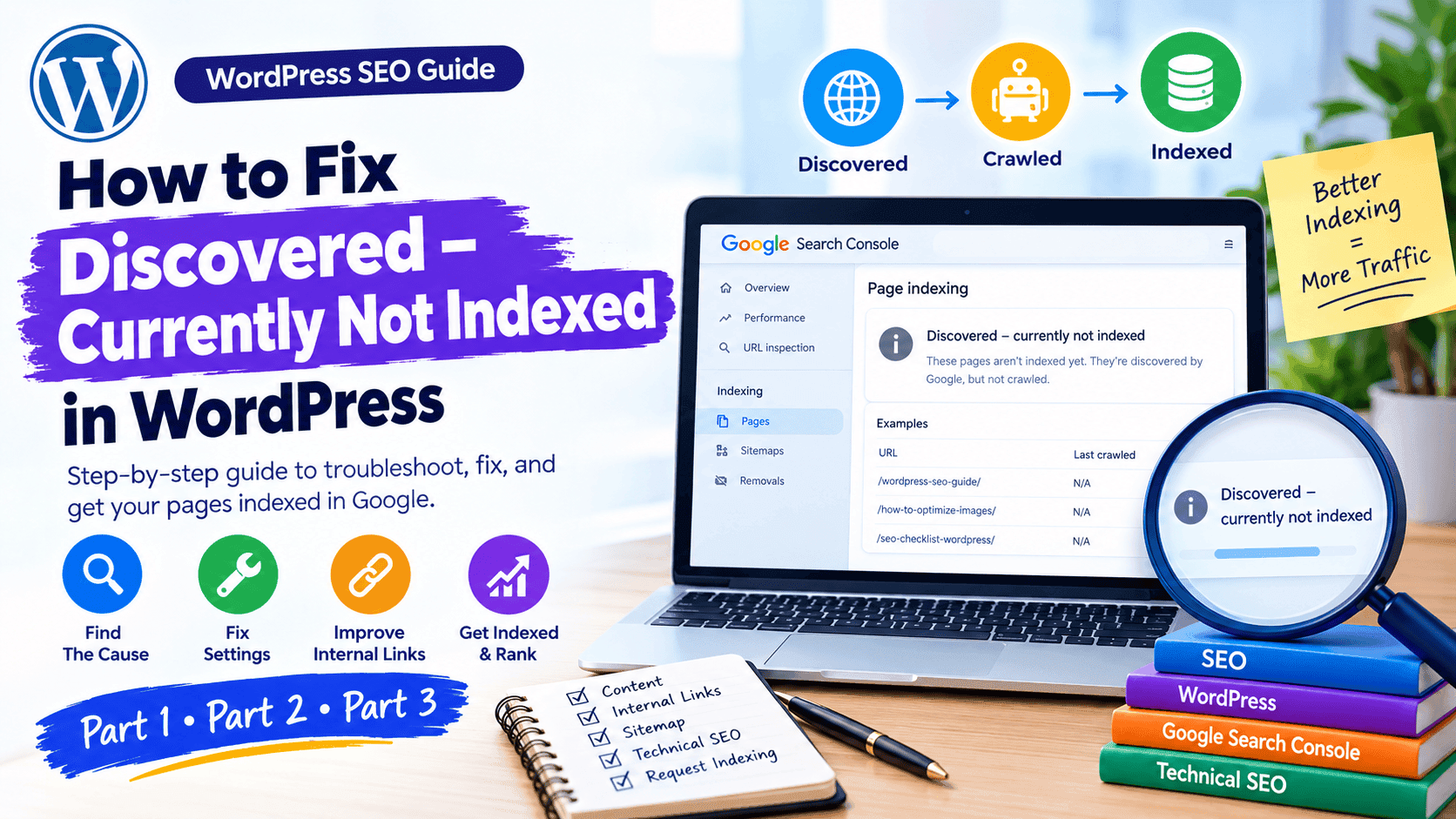
How to Fix “Discovered – Currently Not Indexed” in WordPress
Part 1 of 3 · WordPress SEO troubleshooting guide
1. What Does “Discovered – Currently Not Indexed” Mean?
Have you ever published a new blog post on WordPress, submitted your sitemap, and waited for Google to show your article in search results—only to find that the page is still not indexed?
You open Google Search Console and see this message:
“Discovered – currently not indexed.”
It can be frustrating, especially when you’ve spent hours researching, writing, and optimizing your content.
But this status does not automatically mean that your article is bad or that Google has penalized your website.
It generally means Google knows the URL exists but has not yet crawled it. Google may postpone crawling for various reasons, including the site’s technical condition and how it prioritizes URLs. Discovery, crawling, and indexing are separate stages of Google Search. See Google’s official guide to how Google Search works.
For example, imagine you publish an article about WordPress SEO. You add it to your XML sitemap, link to it from your blog, and optimize its title and meta description.
Google discovers the URL but hasn’t visited the page yet. Search Console may report it as discovered but not indexed.
At this stage, repeatedly changing the focus keyword or rewriting the title is unlikely to solve the underlying issue. You need to investigate how Google discovers your page, whether your website is accessible, and whether the content deserves a place in search results.
If you’re already working on building content clusters, this is also a good opportunity to check whether your new article is properly connected to relevant existing pages.
The goal is not simply to make Google crawl a URL. It’s to help Google discover, access, understand, and potentially index a useful page.
2. Why WordPress Pages May Remain Discovered but Not Indexed
There isn’t one universal reason for this status. Several possible causes deserve investigation.
Google hasn’t crawled the URL yet
A newly published page may be discovered through your sitemap or another page’s link before Googlebot actually visits it.
Google doesn’t promise to crawl every discovered URL immediately. Its crawling guidance recommends checking whether Google knows about the page, whether crawling is blocked, and whether the server is responding reliably.
Your website has weak internal linking
Suppose you publish a new article and never link to it from your homepage, category page, or any existing blog post.
Google might discover the URL through a sitemap, but the page has few connections to the rest of your website.
A sitemap can help Google discover URLs, but it doesn’t replace useful internal links. Google’s link best practices recommend crawlable links with descriptive anchor text.
For example, if your new article covers indexing problems, a relevant existing article about old blog posts losing traffic may provide a natural place to link to it when discussing content audits and search performance.
Don’t add links just to increase their number. Each link should help the reader find related information.
Your website publishes too many similar articles
Imagine your website contains five articles explaining almost the same WordPress SEO tips. A new post may offer little additional information compared with the pages already available.
This doesn’t prove that duplication caused the indexing status. However, reviewing overlapping content is sensible if your website has many similar pages.
Your guide to finding and fixing keyword cannibalization in WordPress can help you evaluate whether pages serve distinct search intents or repeat the same information.
The solution is to improve the value and purpose of each page—not automatically delete articles that share keywords.
Google has technical access problems
Sometimes the problem isn’t the article itself. Your server may be slow or unreliable, a security rule may interfere with crawling, or an incorrect configuration may prevent Googlebot from accessing the page.
Google’s technical requirements for Search explain the basic conditions pages need to meet to be eligible for indexing. Meeting those requirements still doesn’t guarantee inclusion.
These are possibilities to investigate, not assumptions to make before checking your page.
3. How to Check the Status Correctly in Google Search Console
Before changing anything on your WordPress website, confirm the exact indexing status of the affected URL.
Follow these steps.
Step 1: Open Google Search Console
Go to Google Search Console and select the correct website property.
Step 2: Open Page indexing
Navigate to the page indexing report. Find the category labeled “Discovered – currently not indexed,” if it appears in your report.
Open the category to review the affected URLs.
Step 3: Inspect an individual URL
Copy the full URL of your WordPress post and paste it into the URL Inspection tool at the top of Search Console.
Review the available information, including whether Google has indexed the URL, the last crawl information if available, and any reported indexing details.
Step 4: Check the live URL
Use the live URL test to check whether Google can access the current page.
Look for problems such as:
The page returning an error instead of loading successfully.
An accidental
noindexdirective.A robots.txt rule preventing crawling.
Content that fails to load correctly.
Unexpected redirects or a different canonical URL.
A live test helps assess current accessibility, but it does not guarantee that Google will index the page.
Step 5: Record what you find
Create a simple tracking sheet:
URL | Search Console status | Main issue found | Next action |
|---|---|---|---|
Blog post A | Discovered, not indexed | Few internal links | Review and link contextually |
Blog post B | Discovered, not indexed | Technical error | Investigate the server response |
Blog post C | Discovered, not indexed | No clear issue yet | Review content and monitor |
These are example rows, not findings from your actual website.
This process prevents you from applying the same fix to every URL when different pages may have different causes.
4. Your First Fix: Make Sure Google Can Discover and Access the Page
Once you’ve confirmed the status, start with the fundamentals.
Check that the URL is correct. Open the page in a private browser window. Confirm that it loads without requiring a login and that it displays the intended content.
Check your WordPress visibility settings. In WordPress, visit Settings → Reading and look for the option labeled “Discourage search engines from indexing this site.” Make sure it isn’t enabled unintentionally. Also review the page-level SEO settings in Rank Math to confirm that the post isn’t marked noindex.
Check robots.txt. Make sure you haven’t accidentally blocked Googlebot from crawling the relevant page or important site resources.
Review your sitemap. If you use Rank Math, check that the post is eligible for indexing and included in the appropriate XML sitemap. Google’s guide to building and submitting a sitemap explains how sitemaps help search engines discover URLs. A sitemap is a discovery aid, not a guarantee of indexing.
Check for server errors. If the page returns a 5xx response, investigate hosting, server load, caching, or security settings before requesting indexing again.
If everything appears correct, don’t repeatedly submit the same unchanged URL. Move on to reviewing internal links and content quality.
Part 1 complete. In Part 2, we’ll cover the practical fixes in greater detail: strengthening internal links, improving thin or repetitive content, checking sitemap and canonical issues, and deciding when to request indexing again.

Part 2: Practical Fixes for WordPress Indexing Problems
5. Improve Internal Linking to Help Google Discover Your Page
One of the simplest checks you can perform is to see whether your new article is connected to other relevant pages on your website.
Imagine you publish a detailed WordPress SEO guide. The URL is included in your sitemap, but no other page on your website links to it.
Google may discover the URL through the sitemap, but contextual internal links provide another way for search engines and visitors to find the article and understand its relationship to your other content.
Here’s how to improve your internal linking.
Step 1: Find relevant existing articles.
Look for posts that discuss a related problem or topic. For example, an article about indexing can naturally connect to content about technical SEO, content audits, or internal linking.
Your guide to building content clusters is relevant when explaining how to connect a main topic with supporting articles.
Step 2: Add a useful contextual link.
Write a sentence that genuinely helps the reader explore the related topic.
For example:
“If your website contains many older articles, review your old blog posts that are losing traffic to identify outdated information and opportunities for improvement.”
The link should fit naturally into the paragraph. Avoid inserting unrelated links just to increase the number of internal links.
Step 3: Check your navigation and categories.
Make sure important pages can be reached through appropriate category pages, relevant articles, or other useful navigation elements.
Step 4: Verify that the links work.
Open the published page and click the links. Confirm that they point to the correct URLs and aren’t blocked by scripts or other technical issues.
Internal links can improve discovery and help clarify relationships between pages, but they do not guarantee indexing. Google’s official guide to crawlable links explains how to create links that search engines can follow.
6. Improve Content Quality Without Making Unnecessary Changes
Sometimes, your technical settings are correct, your page is accessible, and Google has discovered the URL—but the page still isn’t indexed.
At that point, review whether the content offers a clear reason to exist.
Google does not publish a rule stating that every short article will be excluded or that every long article will be indexed. Instead, focus on whether your page provides useful, original information that satisfies the reader’s needs.
Ask yourself these questions:
Does the article answer a specific question clearly?
Does it provide useful examples, steps, or original observations?
Does it repeat information already covered in several other articles?
Is the information accurate and up to date?
Does the page have a clear purpose for its intended audience?
For example, a post titled How to Fix WordPress Indexing Problems should offer practical diagnostic steps rather than simply repeating the definition of indexing throughout the article.
Your article on finding and fixing keyword cannibalization in WordPress can also help when reviewing whether two posts serve different search intents or overlap too heavily.
If you discover substantial overlap, consider improving the existing article, differentiating the two pages, or merging them when appropriate. Don’t merge pages merely because they contain similar keywords.
Google’s guidance on creating helpful, reliable, people-first content is a useful reference when reviewing content quality.
7. Check Your Sitemap, Canonical Tags, and Indexing Directives
WordPress SEO plugins simplify many technical tasks, but an incorrect setting can still cause problems.
Check your XML sitemap
If you use Rank Math, open your sitemap and confirm that the affected URL appears in the appropriate sitemap when it should be indexed.
Then check whether the URL returns a valid page rather than an error or redirect to an unexpected destination.
A sitemap helps search engines discover URLs. It does not force Google to crawl or index every submitted page.
See Google’s official instructions for building and submitting a sitemap.
Check the canonical URL
A canonical tag identifies the preferred URL among duplicate or very similar pages.
For example, if a page is accessible through multiple URL variations, you should check whether its canonical tag points to the intended version.
In WordPress, review the canonical settings in Rank Math or your current SEO plugin. Don’t change canonical URLs randomly just because a page hasn’t been indexed.
Google may select a different canonical URL when it considers another version more appropriate. Its guide to consolidating duplicate URLs explains how canonicalization works.
Check for noindex
A noindex directive tells search engines not to include the page in search results.
Review the page-level robots settings in your SEO plugin and check whether the page sends a noindex meta tag or an equivalent HTTP header.
Also verify that robots.txt isn’t preventing crawling of a page you expect Google to inspect. A robots.txt block and a noindex directive are different mechanisms; Google needs to be able to crawl a page to see its noindex directive in the HTML.
Make only the changes needed to correct the configuration.
8. Fix Technical Problems Before Requesting Indexing Again
Once your internal links and content have been reviewed, investigate whether technical problems are preventing Google from accessing the page reliably.
Check the HTTP status code. An intended indexable article should normally return a successful response, usually HTTP 200. A server error, unexpected redirect, or missing page requires a different fix.
Check mobile accessibility. Open the page on a phone-sized screen or use Google’s available inspection tools to check that the main content loads correctly. Ensure that essential content isn’t hidden behind an unexpected login or broken interface.
Review caching and security tools. Caching plugins, firewalls, and security services can sometimes interfere with requests. If you suspect this, review server logs or security events rather than disabling protection without a reason.
Look for unnecessary URL variations. Avoid creating multiple accessible URLs for the same content without a clear purpose. Consistent internal links and appropriate canonical settings help maintain a cleaner URL structure.
Request indexing only after meaningful fixes. When the page is accessible and the relevant changes are live, inspect the URL in Google Search Console and use “Request indexing” if available.
Submitting a request does not guarantee indexing, and repeatedly submitting an unchanged URL is not a substitute for fixing the underlying problem.
For further background, consult Google’s technical requirements for appearing in Search.
The key principle is to diagnose the problem first, make the appropriate correction, and then monitor the result.
In Part 3, we’ll cover how to monitor indexing progress, mistakes that can make matters worse, a practical checklist, and frequently asked questions.
Part 3: Monitor Results, Avoid Common Mistakes, and Keep Your Pages Indexable
9. How to Monitor Indexing After Making Changes
You’ve checked your WordPress settings, improved internal links, reviewed content quality, and corrected any technical issues you found. What should you do next?
The next step is to monitor the affected URLs rather than repeatedly changing them without evidence.
Step 1: Record the original status
Before making changes, note the affected URL, its Search Console status, and the main issue you identified.
For example:
URL:
/wordpress-seo-guide/Initial status: Discovered – currently not indexed
Issue found: Few contextual internal links
Action taken: Added relevant links from existing articles
This record will help you understand which changes were made if you need to investigate the page again.
Step 2: Inspect the URL again
Open Google Search Console and use URL Inspection to review the current status.
If the page is eligible for indexing and you’ve made meaningful improvements, you can use the available Request indexing option.
Remember that requesting indexing is a request, not a guarantee. Google decides whether and when to crawl and index a page.
Step 3: Monitor the Page indexing report
Check the report periodically to see whether the status changes.
A page may move from discovered to crawled, but that still doesn’t guarantee it will be indexed. If Google crawls the page without indexing it, review the reported status and investigate the likely cause.
You can learn more from Google’s official Page indexing report documentation.
Step 4: Check actual search performance
Once the page is indexed, monitor impressions, clicks, and relevant queries in Search Console.
Indexing and ranking are different outcomes. A page can be indexed without ranking prominently, and it may take time to attract meaningful search traffic.
Avoid judging the success of your changes solely by whether the URL appears in Google immediately.
10. A Practical Example: Fixing a WordPress Blog Post
Imagine you’ve published a detailed article about optimizing a WordPress website. After several days, Search Console reports that Google discovered the URL but hasn’t crawled it.
Here’s how a sensible investigation might work.
First, confirm the page is accessible. Open the URL and check that it loads successfully without requiring a login.
Second, inspect the technical settings. Check the page’s robots directives, canonical URL, sitemap inclusion, and any unexpected redirects.
Third, review the content. Make sure the article provides useful information rather than repeating the same advice found in several other posts.
Fourth, improve internal linking. Add a relevant link from an existing article that naturally discusses the same subject. Your guide to building content clusters can help you understand how supporting pages relate to a main topic.
Fifth, request indexing if appropriate. After correcting any identified issues, use Search Console’s URL Inspection tool to request indexing.
Finally, monitor the result. Check whether Google crawls the page and whether the indexing status changes. If the problem persists, investigate the new evidence instead of repeating the same actions.
This is an example workflow, not a promise that every page will be indexed after completing these steps.
For a broader content review, your guide to old blog posts losing traffic may also be useful when identifying outdated content or pages that need substantial improvement.
11. Common Mistakes to Avoid
When a page isn’t indexed, it is tempting to try every possible SEO technique. That can waste time or introduce new problems.
Mistake 1: Requesting indexing repeatedly
Repeated requests do not force Google to index a page. Fix identifiable issues first, then request indexing when appropriate.
Mistake 2: Publishing more articles to compensate
Creating more content won’t automatically solve indexing problems affecting existing pages. First determine whether your current pages are accessible, useful, and properly connected.
Mistake 3: Changing the URL without a reason
Changing a permalink just because Google hasn’t indexed the page can introduce redirect and internal-linking work without addressing the actual cause.
Keep the existing URL unless there is a sound reason to change it. If you do change it, configure an appropriate permanent redirect and update internal links.
Mistake 4: Adding too many plugins
You don’t need several plugins performing the same SEO or indexing tasks. Review your current configuration before adding another tool.
Mistake 5: Treating every indexing issue the same way
A server error, an accidental noindex directive, a weak internal-link structure, and a page that Google has discovered but not crawled are different situations.
Diagnose the reported status and the evidence before choosing a solution.
Mistake 6: Assuming indexing guarantees rankings
Getting a URL indexed does not guarantee first-page rankings or even significant traffic. Content relevance, competition, site quality, and many other factors influence search visibility.
Google’s helpful, reliable, people-first content guidance is a useful reminder to prioritize the reader’s needs instead of making changes solely to satisfy an SEO checklist.
12. Final Checklist and Frequently Asked Questions
Use this checklist when reviewing a WordPress page that has been discovered but not indexed.
Confirm the exact status in Google Search Console.
Verify that the URL loads correctly and returns an appropriate HTTP response.
Check for accidental
noindexdirectives.Review robots.txt and ensure the page can be crawled.
Check the canonical URL.
Confirm that the page is included in the appropriate sitemap when eligible.
Add relevant internal links from useful existing pages.
Improve content where it is thin, repetitive, outdated, or unclear.
Request indexing after making meaningful corrections, if appropriate.
Monitor the URL’s status and performance over time.
Frequently Asked Questions
There is no fixed timeframe. Some URLs are crawled relatively quickly, while others may remain in this status for longer. The duration depends on factors such as crawling priorities, site accessibility, and Google’s systems.
No. This status alone does not indicate a Google penalty. It means Google has discovered the URL but has not yet crawled it.
Rank Math can help manage sitemaps, robots directives, canonical settings, and other SEO configurations. However, it cannot force Google to crawl or index a page. You still need to investigate the cause.
If your sitemap is valid and already submitted, repeatedly resubmitting it is usually unnecessary. Check whether the affected URL is included and whether the sitemap can be accessed successfully.
Not automatically. Review the page’s purpose, quality, uniqueness, and value to visitors. Improve it, consolidate it, or remove it only when the evidence supports that decision.
No. Relevant internal links can help Google discover pages and understand their relationships, but indexing is not guaranteed.
“Discovered” means Google knows the URL but hasn’t crawled it yet. “Crawled” means Google has visited the URL but has not indexed it. The second status calls for reviewing the page and its indexing eligibility after the crawl.
Final Thoughts
When Google reports “Discovered – currently not indexed,” don’t immediately assume your content is poor or your website is penalized.
Start by confirming the status, checking accessibility and technical settings, reviewing internal links, and evaluating whether the page provides useful, distinct information.
Make changes based on evidence, request indexing when appropriate, and monitor the result without expecting an immediate guarantee.
A sustainable WordPress SEO strategy is built on technically accessible pages, helpful content, and a website structure that makes important information easy to discover.
The aim is not to force every URL into Google’s index. It’s to make sure the pages worth indexing are useful, accessible, and connected to the rest of your website.